


What Loading Patterns Keep Users Patient and Engaged?
When your app takes three seconds to load content, what are your users actually seeing, and does that make them more or less likely to wait? The truth is that how you show loading states matters just as much as how fast your app loads, and I've watched perfectly fast apps lose users simply because they handled the waiting experience badly. After building apps across healthcare, fintech and retail for the past ten years, I've learned that user patience isn't just about speed... it's about perception, communication, and giving people confidence that something is actually happening. A blank white screen for two seconds feels longer than a skeleton loader for five seconds, and understanding why that happens has saved more than one project from poor retention numbers.
Users will forgive slow loading if they feel informed and in control throughout the wait
The mobile app space has shifted massively in how we think about performance, and while backend optimisation matters, frontend loading patterns often make the bigger difference to how users experience your app. You can spend weeks shaving milliseconds off API response times, but if users see a spinning circle with no context, they'll still feel frustrated and uncertain.
Why Loading Screens Matter More Than You Think
Most apps lose between 25 and 40 percent of users who experience just one poor loading interaction, and that number jumps dramatically after multiple slow experiences. We built an e-commerce app where checkout took roughly four seconds to process, which isn't terrible by any measure, but users were abandoning at checkout completion more than anywhere else in the flow. The problem wasn't the speed at all.
It was the blank screen.
When we replaced that blank loading state with a progress indicator showing "Confirming payment... Preparing your order... Almost done" the abandonment rate dropped by about 18 percent overnight, with exactly the same backend processing time. The technical performance hadn't changed, but the user's perception of that wait time completely transformed because they understood what was happening and roughly how long it would take.
Loading states serve three purposes that directly impact retention and user satisfaction. They confirm that the app is working and hasn't frozen, they set expectations about wait duration, and they maintain user attention during unavoidable delays. Miss any of these three elements and even a reasonably fast app can feel broken or unresponsive.
- Users form judgements about app quality within the first 3-5 seconds of interaction
- Perceived performance often matters more than actual performance for user satisfaction
- Loading states reduce uncertainty, which is more frustrating than waiting itself
- Poor loading experiences compound, making users less patient with each occurrence
The Psychology Behind Wait Time Perception
There's a reason airport walkways exist between gates, and it's not just about moving people efficiently... walking makes the time feel shorter than standing still, even when the total journey takes longer. The same principle applies to loading states in apps, where perceived activity reduces frustration even when actual wait times stay constant.
What we call "active waiting" makes time pass faster than "passive waiting" in user perception studies, and this shows up clearly in app analytics when you track session abandonment rates. A static spinner loses more users than an animated progress bar, even at identical load times, because the progress bar communicates forward movement and gives users something to observe beyond their own impatience.
Look, the human brain is terrible at accurately judging short time periods. Two seconds of uncertain waiting feels longer than four seconds of explained, visualised progress, which is why skeleton screens often outperform faster-loading blank states in user satisfaction scores. This isn't about tricking users or making slow apps feel fast through deception... it's about honest communication during necessary wait times. Just like design psychology affects how safe an app feels, loading patterns directly influence user perception of app reliability and performance.
| Wait Type | User Perception | Abandonment Risk |
|---|---|---|
| Blank screen | App broken or frozen | Very High |
| Static spinner | Indefinite wait | High |
| Progress indicator | Predictable duration | Medium |
| Skeleton screen | Active loading | Low |
If your loading time varies unpredictably, use skeleton screens or activity indicators rather than progress bars, because a progress bar that moves backwards or stalls destroys trust faster than no indicator at all.
Skeleton Screens and Content Placeholders
When Facebook shifted to skeleton screens for feed loading, their perceived performance scores improved despite no changes to actual load times, and I've replicated similar results across multiple projects since then. Skeleton screens work because they show users exactly where content will appear, maintaining visual continuity between loading and loaded states rather than jumping from empty space to full content.
We implemented skeleton screens in a healthcare app where appointment lists could take anywhere from one to six seconds to load depending on connection quality and data volume. The skeleton showed empty card outlines with pulsing grey blocks where text and images would appear, and suddenly users stopped reporting the app as "slow" even though backend performance hadn't improved at all.
The key to effective skeleton screens is accuracy... they need to closely match the actual content layout that will appear, or the shift from skeleton to content feels jarring and breaks the illusion of smooth loading. I've seen teams build beautiful skeleton animations that look nothing like their actual content layout, and those end up feeling worse than a simple spinner because they set false expectations.
Building Effective Skeletons
Your skeleton should use neutral colours that match your app's theme, typically light grey variations that pulse or shimmer gently to show activity. The animation speed matters too... too fast feels frantic and stressful, too slow feels laggy and unresponsive, and we've found 1.5 to 2 second pulse cycles hit the sweet spot for most users.
- Match skeleton layout precisely to loaded content structure
- Use subtle animation to indicate active loading
- Keep colour palette neutral and non-distracting
- Adjust skeleton complexity based on content type
- Test skeletons on slow connections to verify they appear before content loads
Progress Bars That Actually Help
Progress bars only help when they move predictably and reach completion at roughly the expected time, which is harder than it sounds when you're dealing with variable network conditions and processing times. A progress bar that sits at 90 percent for ages is worse than no progress bar at all, because it breaks the implicit promise that the bar represents actual progress.
I built a file upload feature for a document management app where accurate progress reporting was genuinely possible because we knew file sizes and could measure upload speeds in real time. That progress bar worked beautifully and users rarely abandoned uploads because they could see steady movement and estimate remaining time.
A progress bar that lies about progress damages trust more than honest uncertainty
But we also built an image processing feature where backend time varied wildly based on image complexity, server load, and processing queue position. Our first attempt at a progress bar just incremented steadily regardless of actual progress, which meant it often stalled near the end while processing completed. Users hated it. We switched to a pulsing activity indicator with text updates like "Processing your image" and satisfaction scores improved immediately.
When Progress Bars Work
Use progress bars when you can accurately measure and report actual completion percentage, like file uploads, downloads, multi-step forms, or sequential processes with known stages. Don't use them when completion time varies unpredictably or when you're just guessing at progress based on elapsed time rather than actual completion metrics. This distinction is especially important when working with 5G technology implementation, where connection speeds can vary dramatically.
If you do implement a progress bar, make sure it moves smoothly and never goes backwards, even if your underlying process does. Users interpret backward progress as failure or system error, and it destroys the confidence that progress indicators are meant to build.
Spinner Patterns and When to Use Them
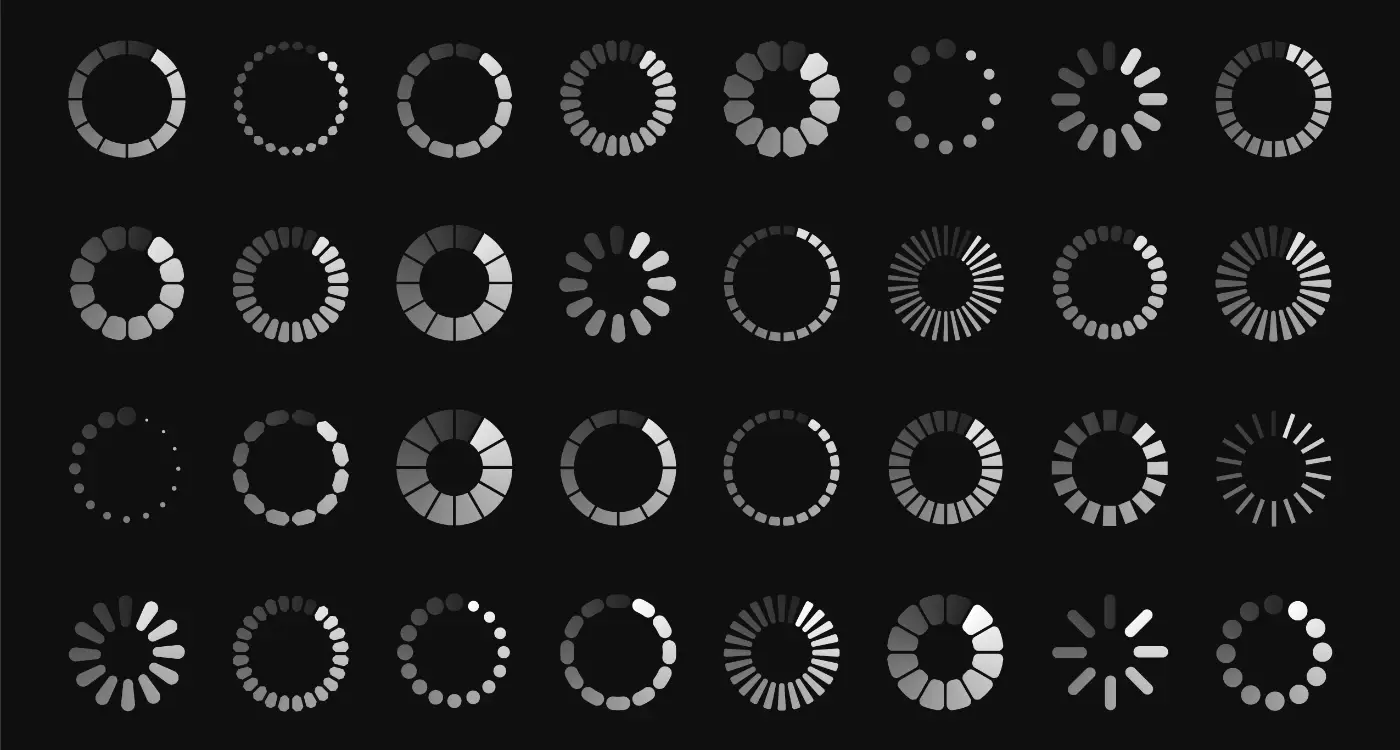
Spinners get a bad reputation in UX discussions, but they're actually the right choice for many loading scenarios, particularly quick actions under one second where more detailed loading states would flash by too quickly to register. The problem isn't spinners themselves... it's using them in situations that need more communication or using them badly without enough context.
A small spinner next to a "Save" button tells users their action is processing without disrupting the entire interface, which works perfectly for quick saves that typically complete in under two seconds. That same spinner as a full-screen overlay for a six-second data load would frustrate users because it provides no information about progress or duration.
The reality is that spinner size, placement, and context matter more than the spinner itself. We use spinners constantly in our projects, but we pair them with text labels, place them strategically within specific interface elements rather than blocking entire screens, and we set timeouts so if a spinner is still visible after three or four seconds we replace it with more detailed loading information.
Spinner Best Practices
Position spinners near the content or action they relate to rather than centring them arbitrarily, and always include text that explains what's loading or processing. "Loading" by itself isn't helpful... "Loading your messages" or "Saving changes" gives users enough context to understand the wait and judge whether it's taking longer than expected.
| Load Duration | Recommended Pattern |
|---|---|
| Under 1 second | Small spinner or nothing |
| 1-3 seconds | Spinner with text label |
| 3-10 seconds | Progress bar or skeleton screen |
| Over 10 seconds | Detailed progress with stages |
Optimistic UI and Instant Feedback
Optimistic UI assumes success and shows the result immediately, then handles failures quietly in the background or rolls back if something goes wrong. When you like a post on social media apps, the heart fills instantly even though the API call might take half a second to complete... that's optimistic UI, and it makes apps feel dramatically faster than they actually are.
We implemented optimistic UI in a task management app where marking tasks complete had a 200-300 millisecond server round trip. Showing a spinner for every task completion made the app feel sluggish despite being technically fast, but making tasks instantly appear completed while processing the change in the background made the whole experience feel snappy and responsive.
The challenge with optimistic UI is handling failures gracefully, because you've already shown the user that their action succeeded when it actually hasn't yet. You need error handling that undoes the optimistic change and communicates what went wrong without making users feel like the app is broken or unreliable. Understanding the difference between bugs and feature requests helps when planning these error scenarios.
When Optimistic UI Makes Sense
Use optimistic UI for high-success-rate actions where failures are rare and easily reversible, like social interactions, simple data updates, or toggle switches. Don't use it for payment processing, account deletion, or any action where failure has serious consequences or where undoing the optimistic change would be confusing or disruptive.
Always provide visual confirmation when optimistic actions complete successfully in the background, like subtle animations or temporary success messages, so users feel confident their action was actually processed rather than just displayed locally.
Common Loading Pattern Mistakes to Avoid
The worst loading pattern mistake I see repeatedly is inconsistent loading states across an app, where some screens use skeletons, others use spinners, and some just go blank. This inconsistency makes apps feel unpolished and amateur, even when individual loading states work fine in isolation. Users build mental models of how your app behaves, and breaking those models creates friction and reduces confidence.
Another frequent mistake is showing loading states for actions that should be instantaneous, like switching tabs or toggling settings that don't require network calls. Every loading indicator should represent actual work happening, not just transitions or local state changes that could happen immediately. If you're showing loading spinners for instant operations, you're probably doing too much work on the main thread or making unnecessary network requests.
Premature optimisation is real here too... I've watched teams spend days building elaborate skeleton screens for loads that actually complete in under 500 milliseconds on normal connections. Those skeletons just flash briefly and annoy users more than helping them. Whether you hire a development team or individual freelancers, make sure they test actual load times across realistic network conditions before investing in complex loading patterns.
Loading Pattern Anti-Patterns
Never nest loading states where a skeleton screen contains spinner elements or where multiple progress indicators compete for attention. This looks broken and confuses users about what's actually loading. Stick to one clear loading pattern per interface section.
Don't use progress bars that increment based purely on elapsed time rather than actual progress, because they'll inevitably stall or jump at the end and destroy trust. Users can tell when progress is fake, and they'll lose confidence in your entire app when they catch you faking system status.
Testing and Measuring User Patience
You can't optimise loading patterns without measuring their actual impact on user behaviour, and that means tracking session abandonment rates, feature completion rates, and time-to-action metrics across different loading implementations. We A/B test loading patterns just like we test features or interface changes, because the data often surprises us.
Network throttling during development and testing is absolutely required to see how your loading states actually perform for users on slower connections or in poor coverage areas. Your fast office wifi or test lab connection isn't representative of real-world usage, and loading patterns that work fine at 50 megabits per second might fail completely at 3G speeds.
Session recordings and user testing reveal how people actually respond to loading states in ways analytics can't capture. We run regular user tests where we deliberately slow down parts of the app and watch how people react to different loading patterns, and that qualitative feedback shapes our decisions about which patterns to implement where.
The best loading pattern is the one your actual users wait through most patiently, not the one that looks best in design reviews
Key Metrics to Track
Measure loading abandonment rate by tracking how many users leave during loading versus after content appears, because this tells you whether your loading pattern is the problem or your content is. Compare these rates across different loading implementations to find patterns that keep users engaged.
Track perceived performance through user surveys and app store reviews, because technical performance metrics don't capture how fast users think your app is. An app that loads in three seconds with good loading states will score higher on perceived performance than an app that loads in two seconds with poor loading states. Consider structuring your App Store Connect account to track these metrics across different app versions.
Conclusion
Loading patterns aren't about covering up slow apps or tricking users into waiting longer... they're about honest communication during necessary delays and respecting users enough to tell them what's happening and roughly how long it will take. The apps that keep users patient and engaged during loading understand that perception matters as much as performance, and they invest in loading experiences that maintain confidence and attention rather than creating anxiety and uncertainty.
Your choice of loading pattern should match your actual load times, the predictability of those times, and the context in which loading happens. Skeleton screens for content feeds, progress bars for measurable tasks, optimistic UI for high-success actions, and spinners with clear labels for quick operations... each has its place, and using them appropriately makes the difference between users who wait patiently and users who abandon your app.
If you're building an app and want help designing loading experiences that keep users engaged rather than frustrated, get in touch and we can talk through what would work best for your specific use case.
Frequently Asked Questions
Show loading indicators immediately for any action that takes longer than 200-300 milliseconds, because users expect instant feedback and will assume your app has frozen without visual confirmation. For very quick actions under one second, a small spinner near the action button works better than full-screen loading states that flash by too quickly to be useful.
Skeleton screens show placeholder content layouts and work best when load times are unpredictable or when you're loading visual content like feeds or lists. Progress bars should only be used when you can accurately measure completion percentage, like file uploads or multi-step processes, because fake progress destroys user trust faster than honest uncertainty.
No, users can tell when progress is fake and it damages trust in your entire app when they catch you lying about system status. Instead, use skeleton screens or activity indicators with honest text labels that communicate what's actually happening without promising specific completion times you can't deliver.
You're probably not testing on realistic network conditions where your loading states actually matter. Test with network throttling at 3G speeds and focus on loading patterns rather than just speed, because a blank screen for two seconds feels longer than a skeleton screen for five seconds.
Yes, consistency in loading patterns makes your app feel polished and helps users build mental models of how your app behaves. Choose 2-3 loading patterns maximum and use them consistently based on load duration and content type rather than mixing different patterns randomly across screens.
Use optimistic UI for high-success-rate actions that are easily reversible, like social interactions or simple toggles, but never for critical actions like payments or account changes where failure has serious consequences. You need bulletproof error handling that can gracefully undo optimistic changes when things go wrong.
Track session abandonment rates during loading versus after content appears, and compare these metrics across different loading implementations through A/B testing. User surveys about perceived performance often reveal that apps with good loading states feel faster than technically faster apps with poor loading experiences.
Showing loading states for actions that should be instantaneous, like switching tabs or toggling local settings that don't require network calls. Every loading indicator should represent actual work happening, and if you're showing spinners for instant operations, you're probably doing unnecessary work or blocking the main thread.
Share this
Subscribe To Our Learning Centre
You May Also Like
These Related Guides
How Do Loading Animations Keep Users Patient and Happy?

How Can I Check If My Onboarding Flow Is Too Long?